Enable the Anycover widget on your Shopify theme
After installing or updating the Anycover app, enable its theme app embed so the Anycover widget can load on your storefront. This is a one-time step for each theme where you want the widget to appear.
Turn on the app embed
- Open your Shopify admin.
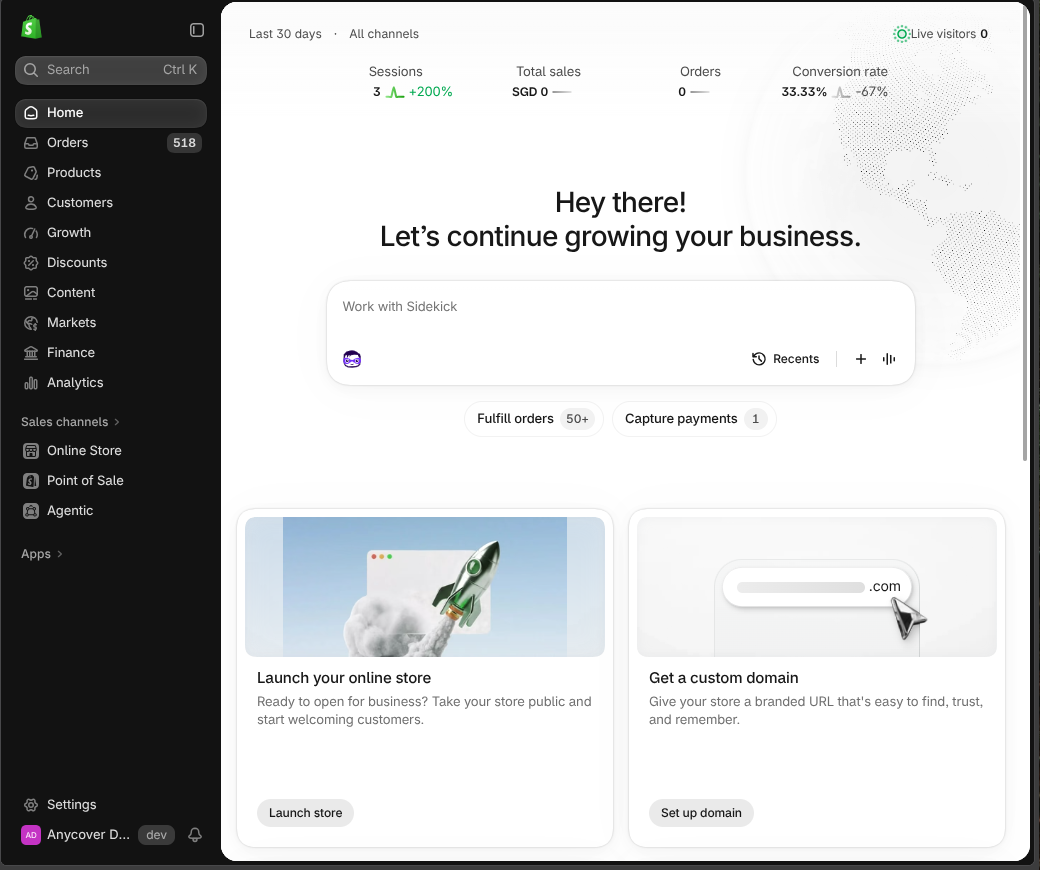
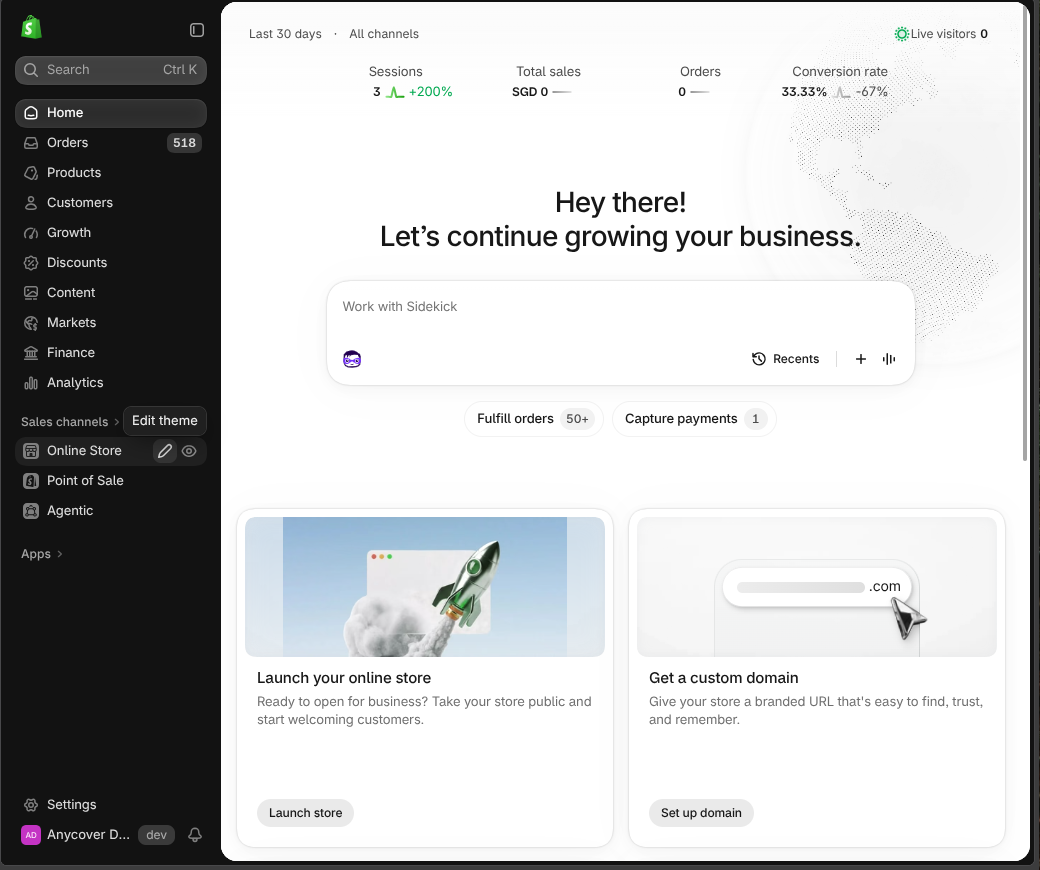
- In the left sidebar, click Online Store, then click Customize for the theme you want to update.
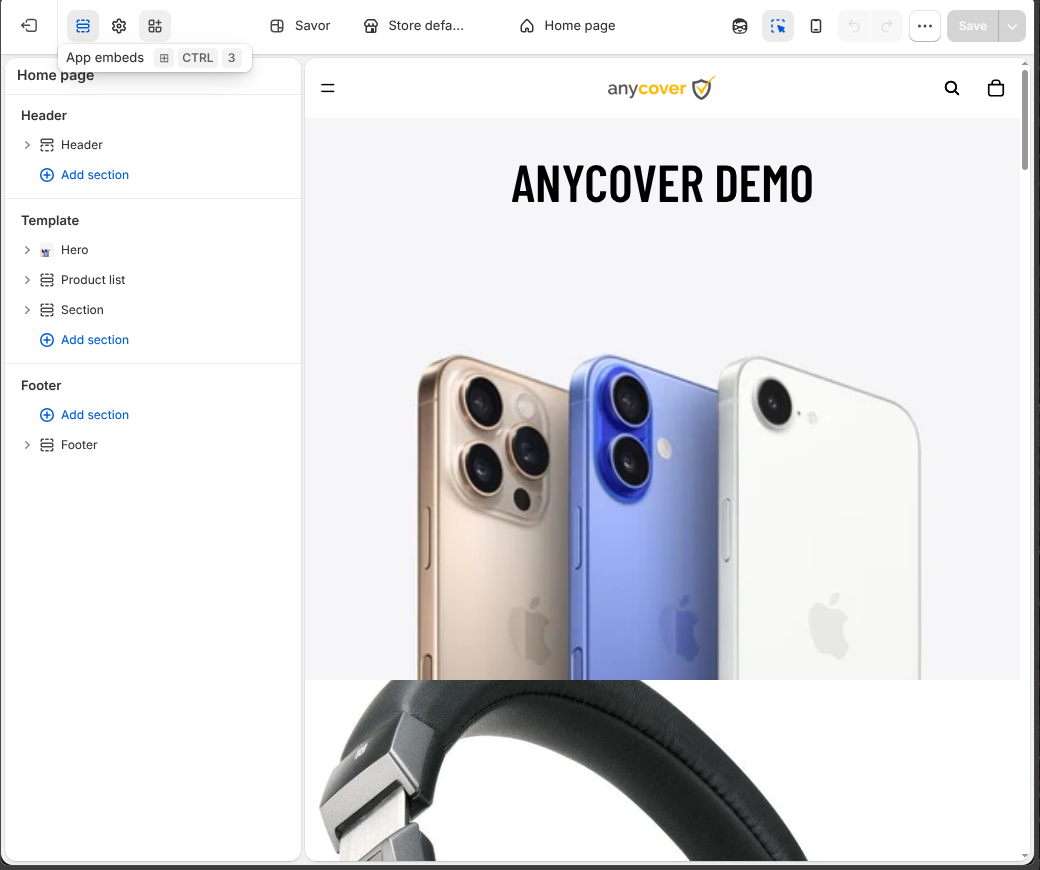
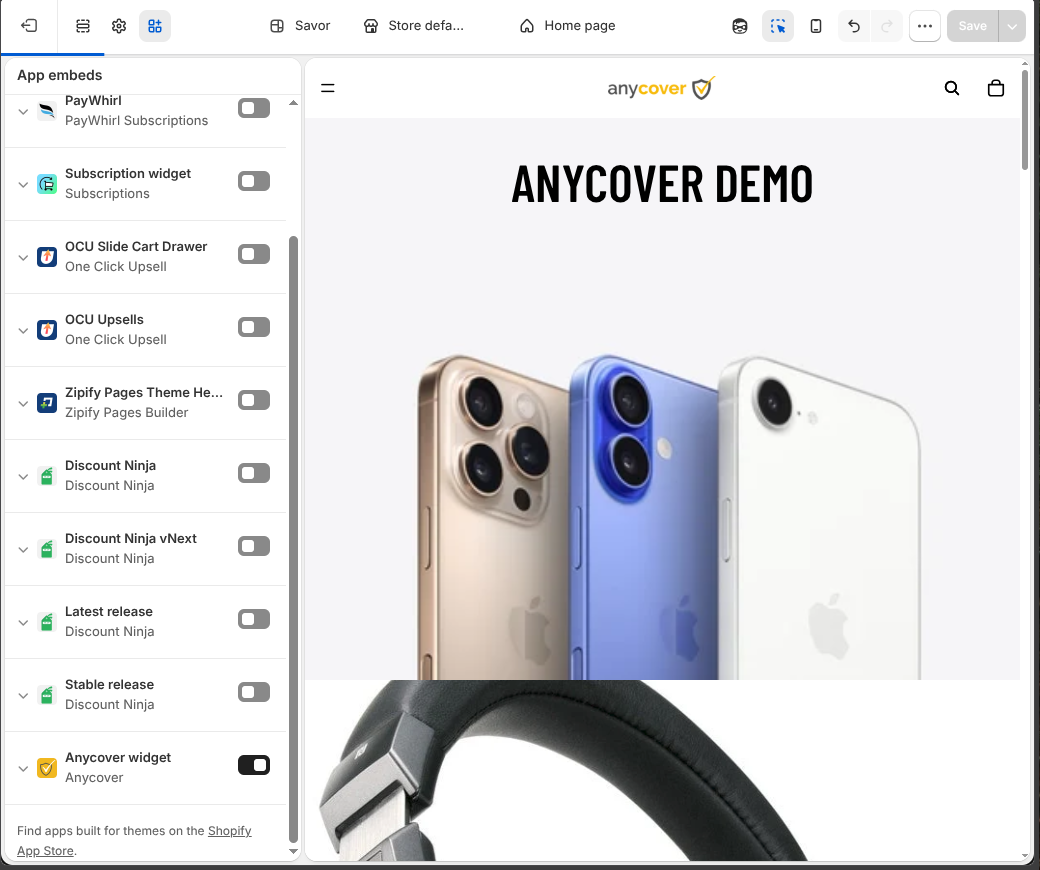
- In the theme editor, click App embeds in the left toolbar.
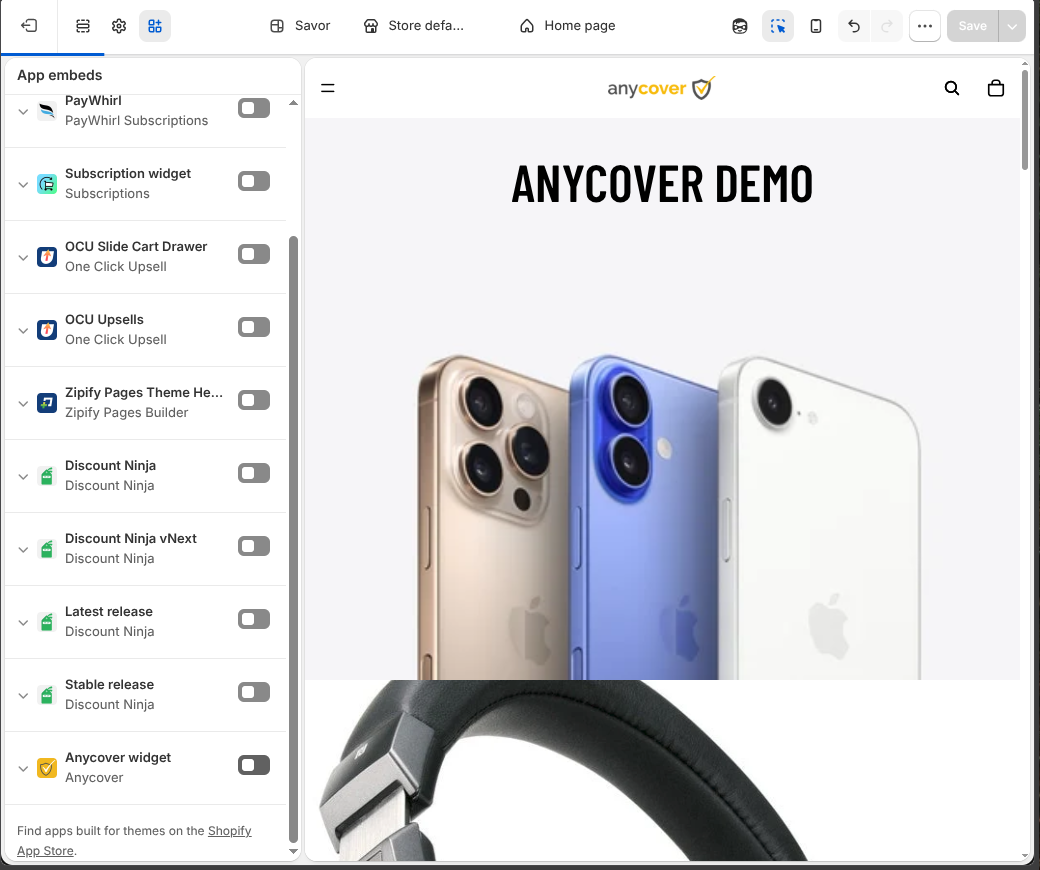
- Find Anycover widget and switch it on.
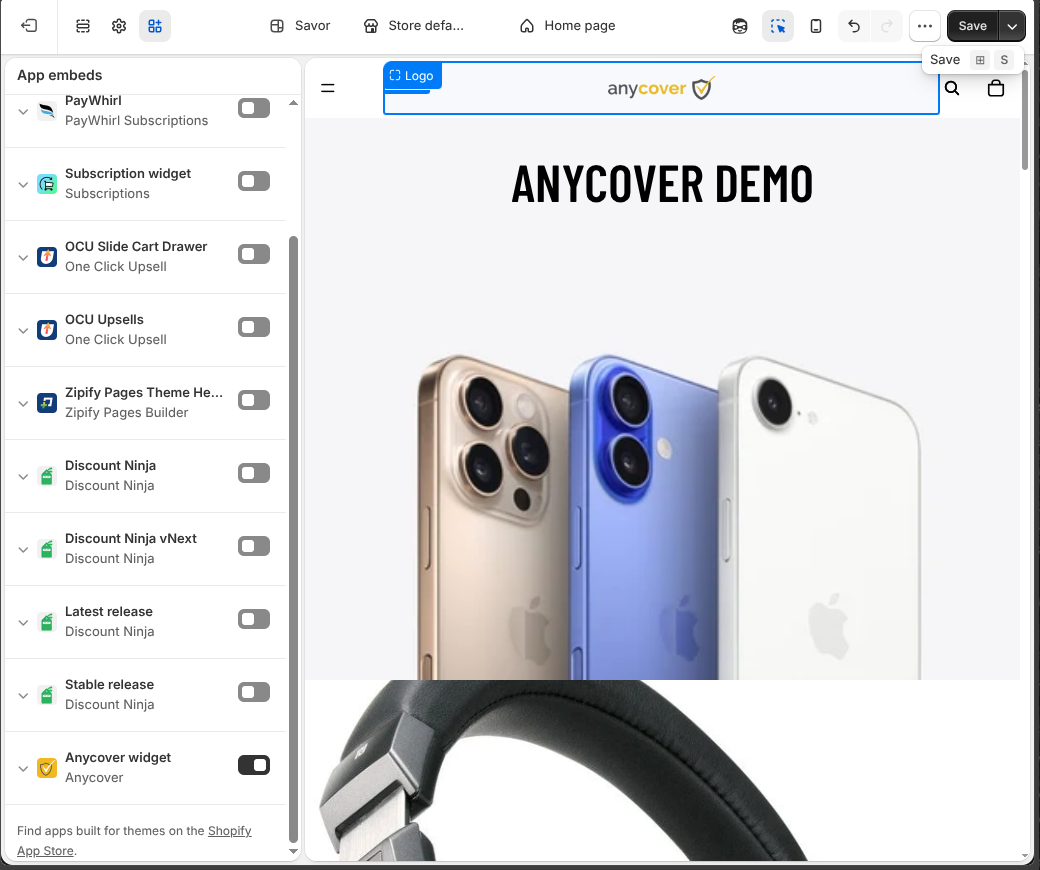
- Click Save in the top-right corner of the theme editor.
The embed is available after the Anycover app update has been installed. If you do not see Anycover widget, confirm that the Anycover app is installed and contact Anycover support for help.
Preview and check the storefront
Open your storefront in a new tab and check a product page that is eligible for protection. The widget appears only where Anycover has configured an eligible protection plan. If it does not appear, confirm that the embed is on for the theme you are viewing and that your changes were saved.
Disable or remove the widget
To stop loading the widget, return to Online Store → Themes → Customize → App embeds, turn off Anycover widget, and save. This setting applies to that theme. Repeat the change for any other theme where the embed was enabled.
Uninstalling the Anycover app also removes the app's available theme embed. If you only want to hide the storefront widget while keeping Anycover installed, turn off the embed instead.